Get help in the app
Every page has a Help button in the top bar. It opens the Help panel on the right, so you can read an article next to the page it explains.
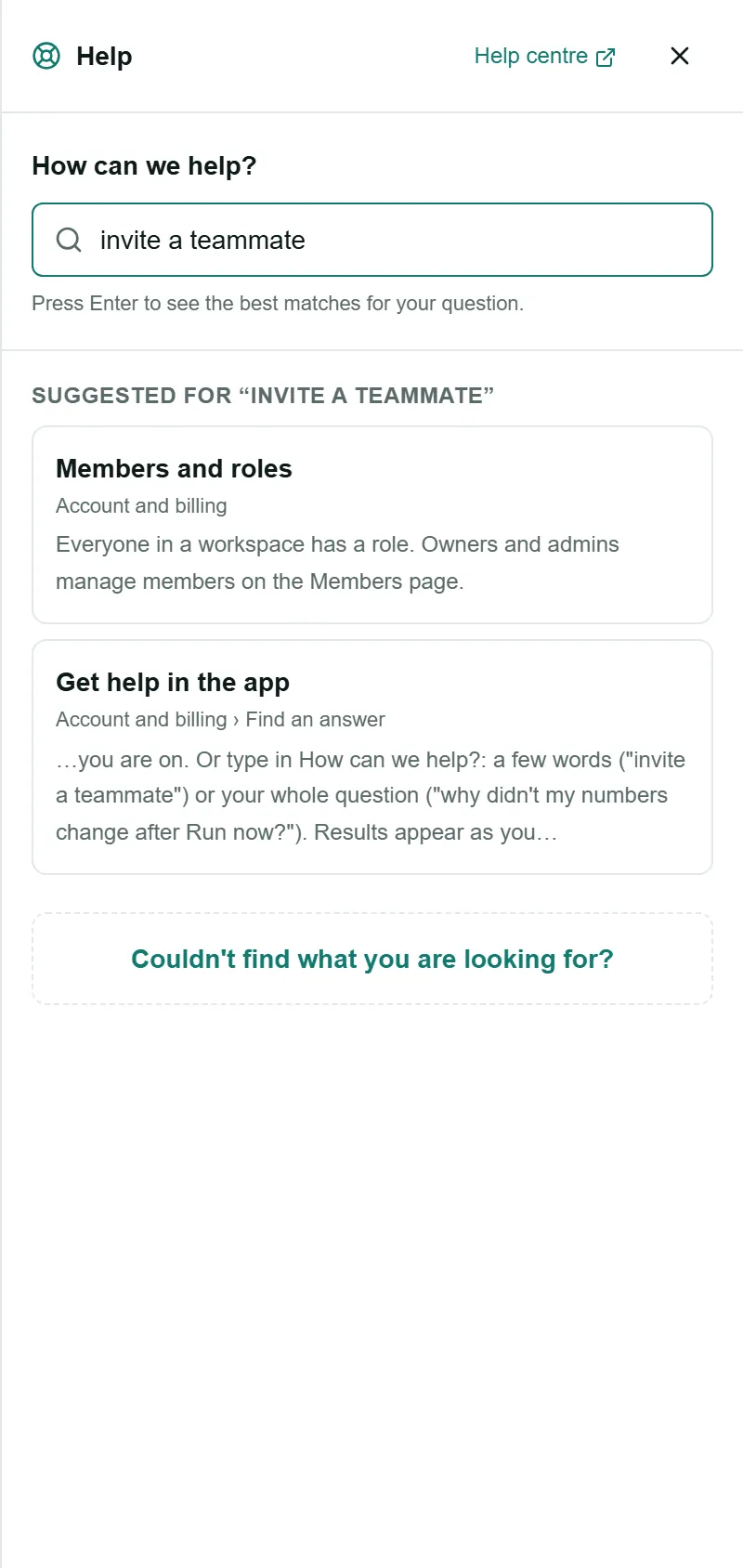
Find an answer
Section titled “Find an answer”- Choose Help at the top right.
- Look at For this page: the articles about the page you are on.
- Or type in How can we help?: a few words (“invite a teammate”) or your whole question (“why didn’t my numbers change after Run now?”). Results appear as you type; press Enter to see the best matches.
- Choose an article to read it in the panel. Open the full article with screenshots opens it in the help centre.
You can also browse every section of the help centre under Browse.
Chat with the LaCleo team
Section titled “Chat with the LaCleo team”If the articles do not answer your question, choose Couldn’t find what you are looking for? at the bottom of the panel.
- Write what you are trying to do and choose Send.
- A person on the LaCleo team replies in the same panel. A red dot on Help shows when there is a reply.
- Open Help and choose Your chat with the LaCleo team to read it and reply.
Your chat includes the page you were on and what you searched for, so you do not have to explain it again. Only you and the LaCleo team can read it.
Send a screenshot or a file
Section titled “Send a screenshot or a file”If a screenshot or a file would help, the LaCleo team switches on files for your chat. A paperclip then appears next to Send:
- Choose the paperclip to pick files, or paste a screenshot straight into the message box (Ctrl+V, or Cmd+V on a Mac).
- You can send images (PNG, JPG, WebP, GIF), PDF, CSV and Excel (.xlsx) files, up to 5 MB each and 3 per message.
The LaCleo team can also send you screenshots and files in the chat. Files are private to your chat.