Members and roles
Everyone in a workspace has a role. Owners and admins manage members on the Members page.
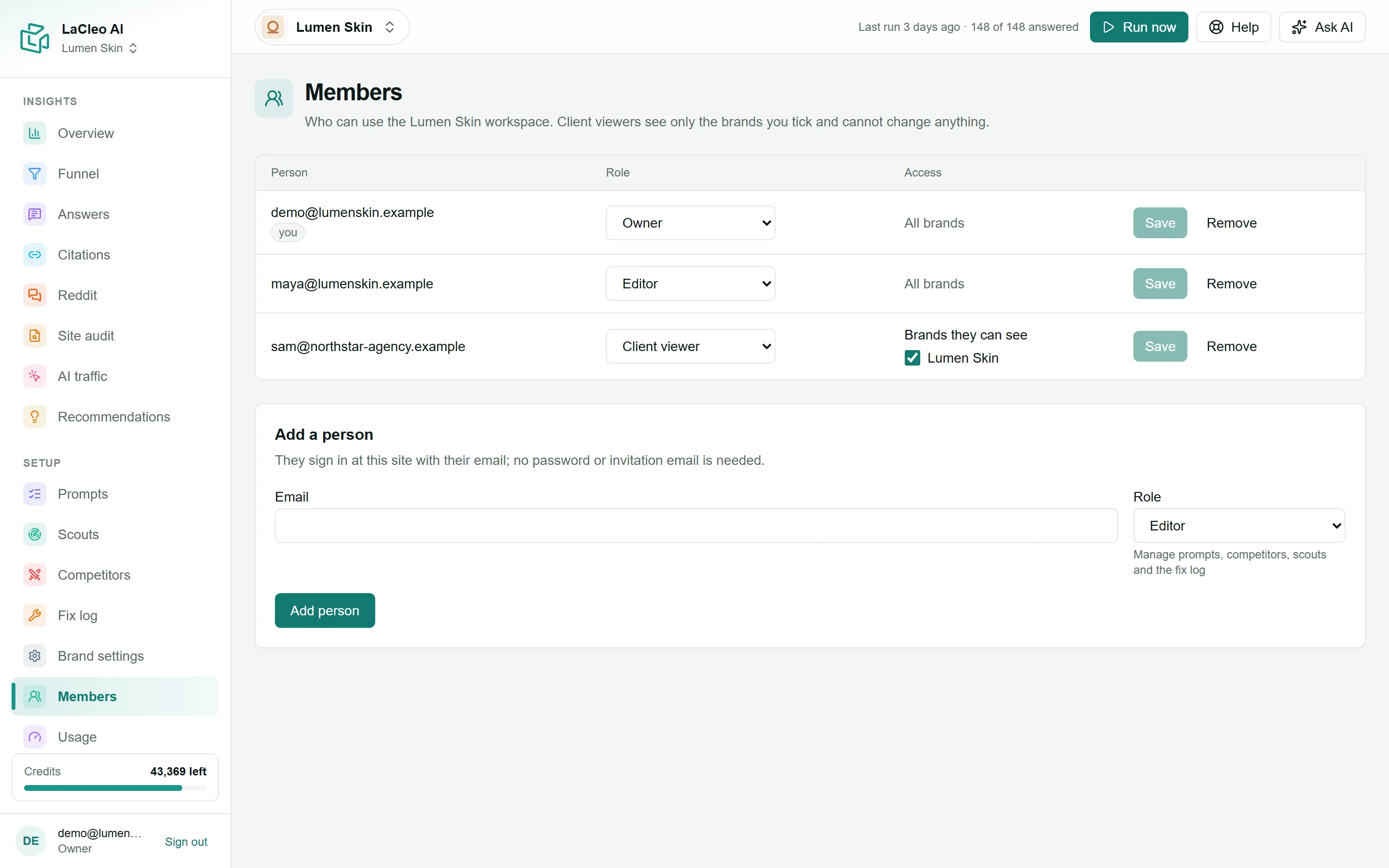
| Role | Can |
|---|---|
| Owner | Everything, including managing other owners. A workspace always has at least one owner. |
| Admin | Manage brands, brand settings and members, and see usage. |
| Editor | Manage questions, competitors, scouts and the fix log; run scouts, audits and AI tasks. Sees every brand. |
| Client viewer | Read only, and only the brands you choose. Ideal for agency clients. |
Each role includes everything the roles below it can do. Credits are shown to editors and above.
Add a person
Section titled “Add a person”- Open Members and find Add a person.
- Enter their Email and choose a Role.
- For a Client viewer, tick the brands they can see under Brands they can see.
- Choose Add person.
They can sign in straight away at geo.lacleo.ai with that email, with Google or an emailed code. No password or invitation email is needed, so tell them yourself that they have access.
Change or remove access
Section titled “Change or remove access”- Change someone’s role or brands in the list and choose Save.
- Remove takes away their access to the workspace.
- Only an owner can add, change or remove an owner.