Workspaces and brands
How it is organised
Section titled “How it is organised”- A workspace holds brands, their questions and their team. Use one per company, or, for an agency, one per client group.
- A brand is one company or product you track, with its own competitors, questions, scouts and results.
Sign in
Section titled “Sign in”Go to geo.lacleo.ai. Access is by invitation, so use the email address you were invited with.
- Continue with Google signs you in with your Google account.
- Or enter your Work email, choose Email me a code, and type the Code from the email. The code can take a minute to arrive; choose Send a new code if it does not.
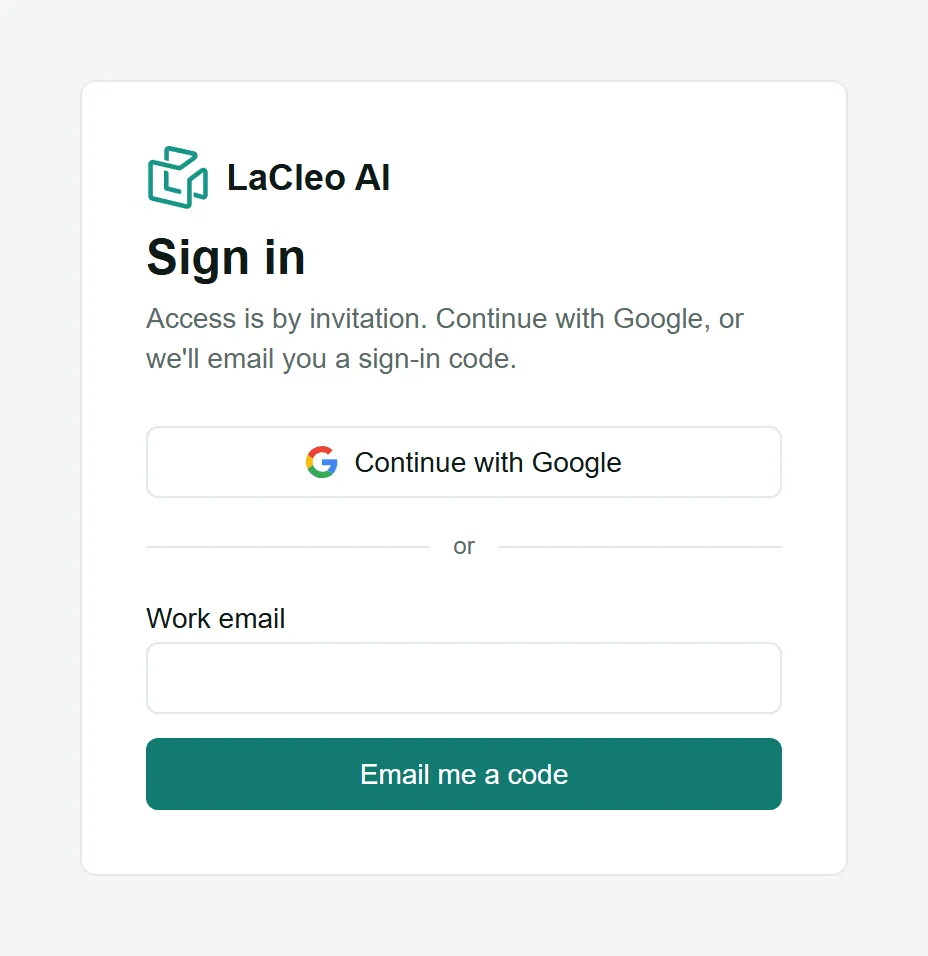
After you sign in, you go straight to the workspace you used last.
Create a workspace
Section titled “Create a workspace”- Open the workspace menu at the top of the left menu (under LaCleo AI) and choose New workspace.
- Enter a Workspace name, for example your company name or “Acme clients”.
- Choose Create workspace. You become its owner, and the next step is adding a brand.
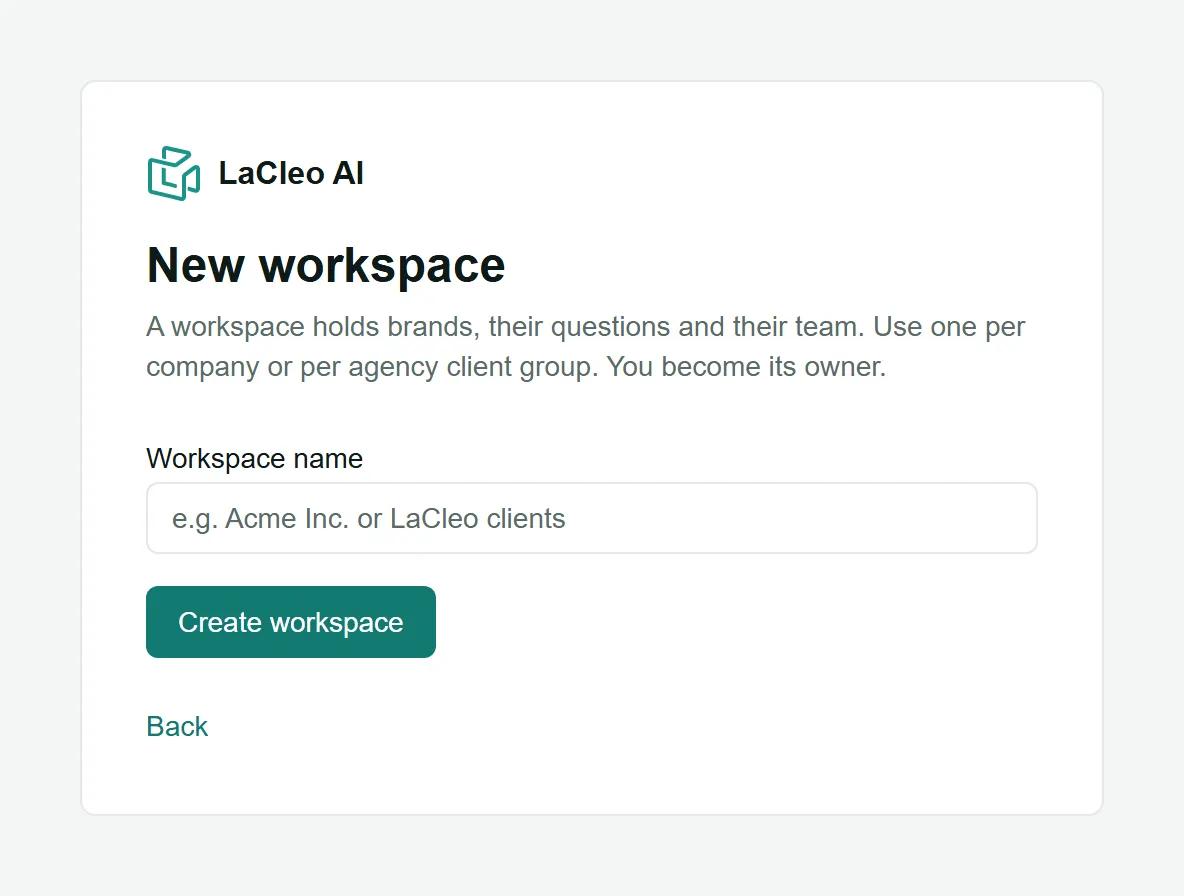
Add a brand
Section titled “Add a brand”Owners and admins can add brands.
- Choose Add brand in the brand menu at the top of the page (or you are taken there when a workspace has no brands yet).
- Fill in:
- Brand name: as people write it, for example “Lumen Skin”.
- Website: the domain only, like
lumenskin.com. LaCleo uses it to recognise your own pages when AI answers cite them. - Main country and Main language: where your buyers are and the language they use. New questions are asked from this country unless you choose others.
- Keywords (optional): what you sell, comma separated. The AI uses them when it suggests questions for you.
- Choose Add brand. You land on Prompts, ready to add questions.
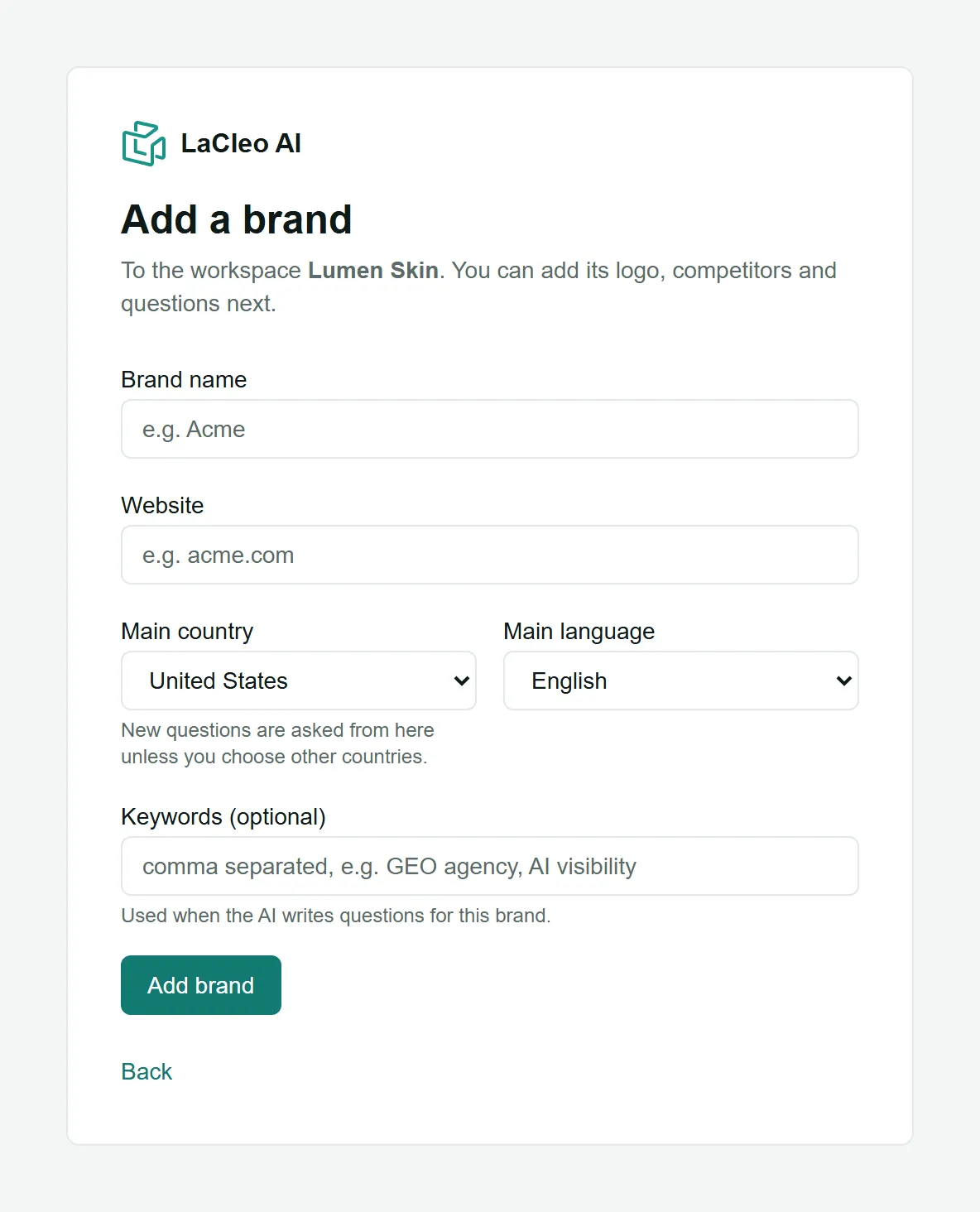
Switch between brands
Section titled “Switch between brands”Use the brand menu at the top of every page. It lists every brand you can see, with its logo and website, and keeps you on the same page: switching from one brand’s Prompts opens the other brand’s Prompts.
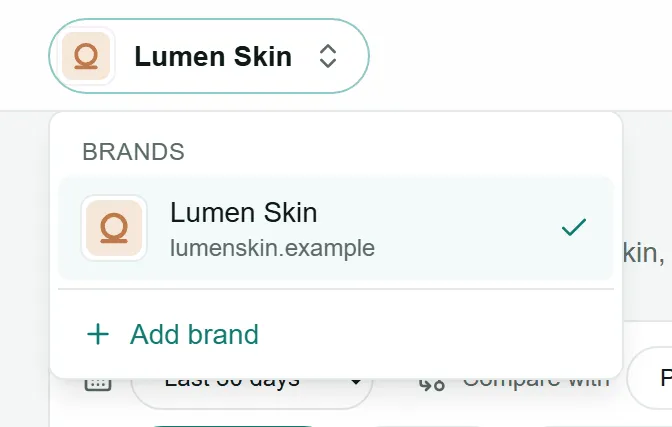
Brand settings
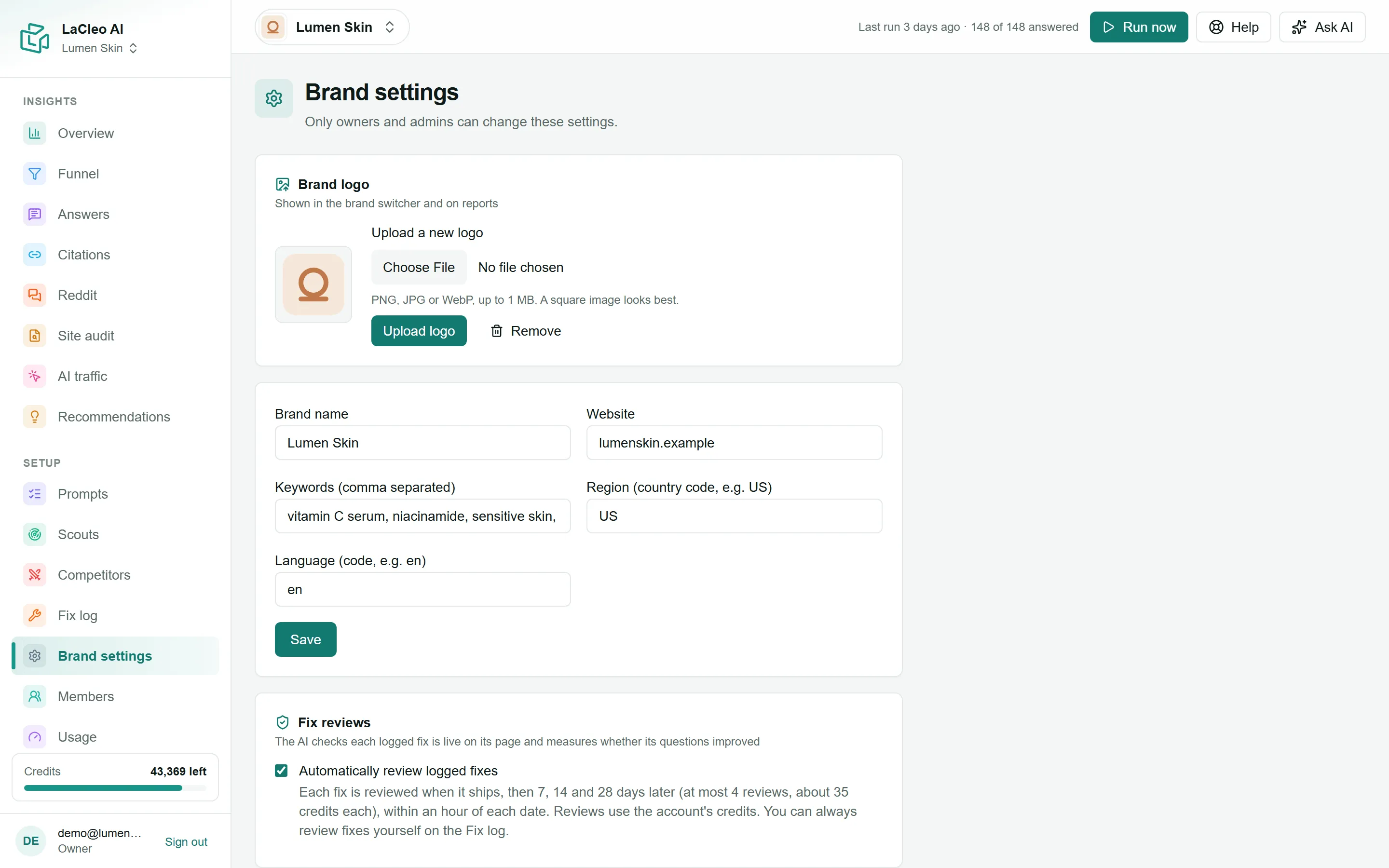
Section titled “Brand settings”Open Brand settings in the left menu to change the brand’s name, website, keywords, region (country code, like US) and language (like en), and choose Save. Only owners and admins can change these settings.
Add a logo
Section titled “Add a logo”Under Brand logo, choose Upload a new logo, pick a file and choose Upload logo. Use a PNG, JPG or WebP image up to 1 MB; a square image looks best. The logo appears in the brand menu and on reports.
Automatic fix reviews
Section titled “Automatic fix reviews”Automatically review logged fixes checks each fix you log when it ships and again 7, 14 and 28 days later. See Fix log and fix reviews.