Use LaCleo in Claude, ChatGPT and other AI apps
LaCleo works inside the AI apps you already use. Once connected, you can ask Claude or ChatGPT “how visible is Lumen Skin on ChatGPT this month?” and it answers from your LaCleo data, with the same permissions you have in LaCleo.
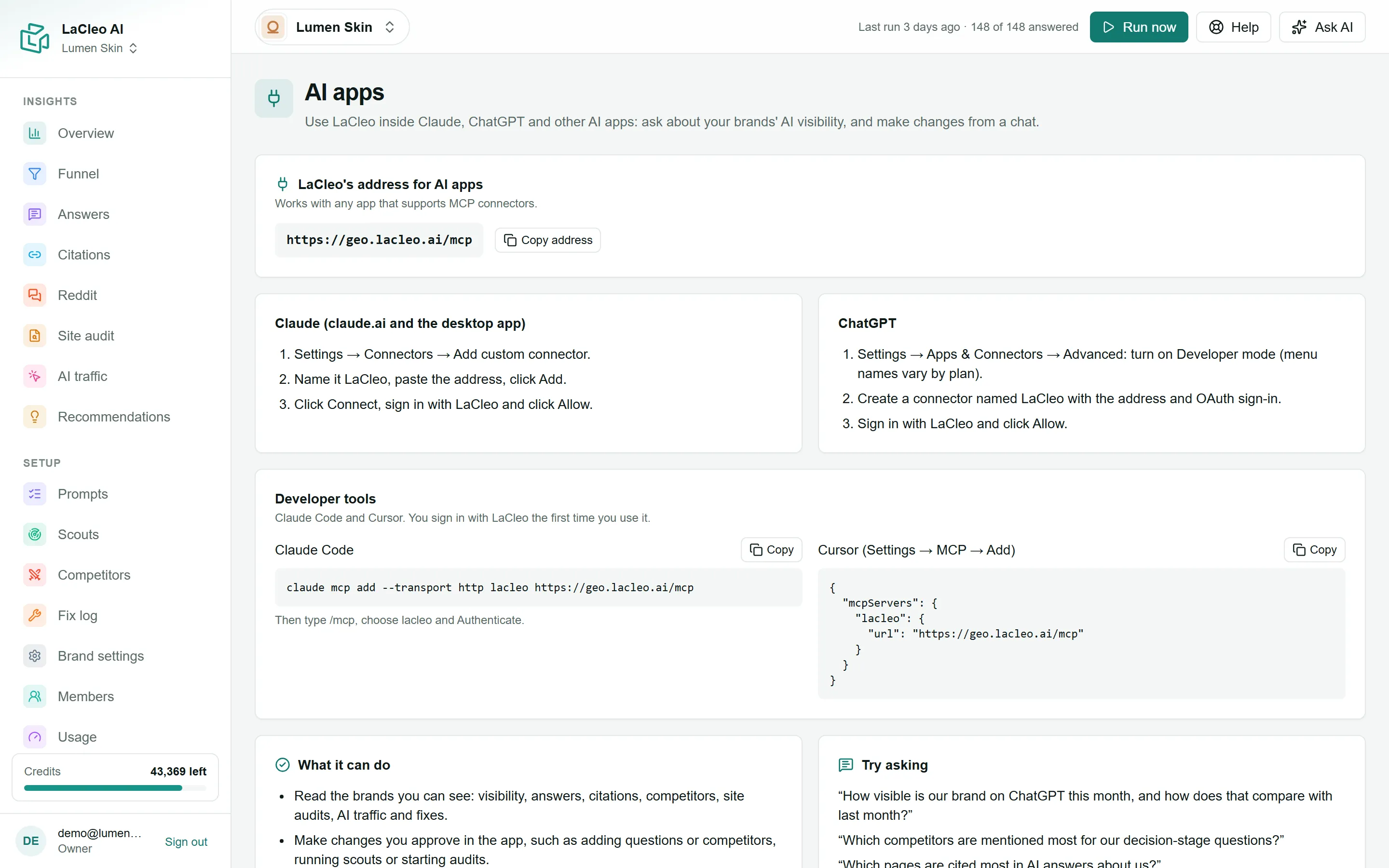
LaCleo’s address
Section titled “LaCleo’s address”Every app needs the same address:
https://geo.lacleo.ai/mcpIt works with any app that supports MCP connectors. You sign in with your LaCleo account the first time; no keys or passwords to copy.
Connect an app
Section titled “Connect an app”- In claude.ai or the Claude desktop app, open Settings → Connectors → Add custom connector.
- Name it LaCleo, paste the address and choose Add.
- Choose Connect, sign in with LaCleo, and choose Allow.
- In ChatGPT, open Settings → Apps & Connectors → Advanced and turn on Developer mode (menu names vary by plan).
- Create a connector named LaCleo with the address above and OAuth sign-in.
- Sign in with LaCleo and choose Allow.
Run:
claude mcp add --transport http lacleo https://geo.lacleo.ai/mcpThen type /mcp, choose lacleo and Authenticate.
Open Settings → MCP → Add and add:
{ "mcpServers": { "lacleo": { "url": "https://geo.lacleo.ai/mcp" } } }When you sign in, LaCleo asks you to confirm: Connect [app] to LaCleo. Choose Allow to connect, or Deny.
What the app can do
Section titled “What the app can do”Exactly what you can do in LaCleo, for the brands you can see:
- Read visibility, share of voice, answers, citations, competitors, discovered companies, Reddit, the site audit, recommendations, the fix log and AI traffic.
- Make free changes straight away: add a question, track a competitor, log a fix, save a scout, add a brand or start a site discovery.
- Ask before using credits. Tasks that use credits (running a scout now, recommending fixes, reviewing fixes, analysing pages, finding and verifying traffic questions) are marked so your app asks for your approval first.
Client viewers can only read.
Disconnect
Section titled “Disconnect”The Connected apps list on the AI apps page shows every app you have connected. Choose Disconnect to remove one.